> ## Documentation Index
> Fetch the complete documentation index at: https://dev.chief.bot/llms.txt
> Use this file to discover all available pages before exploring further.
# MCP server
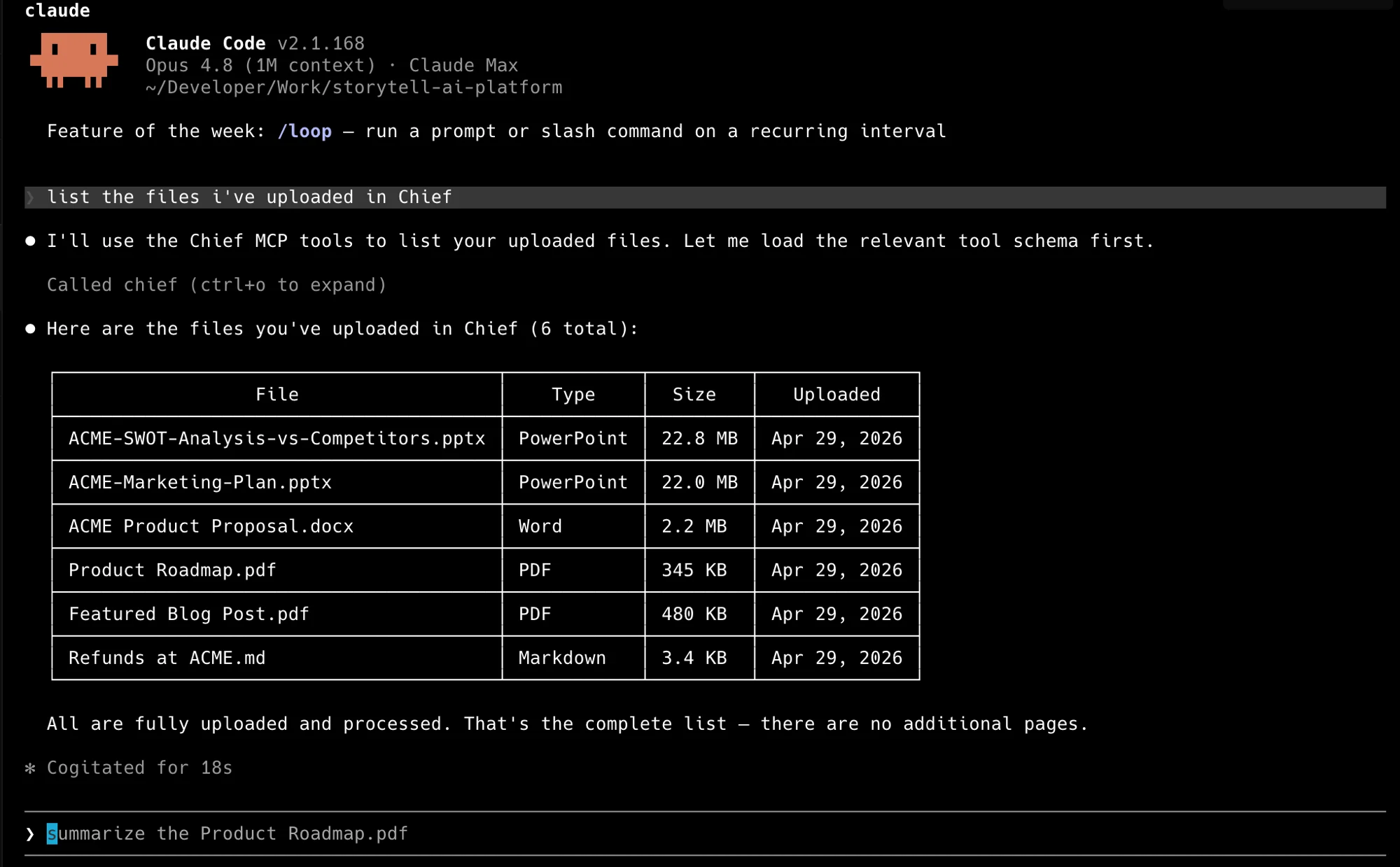
> Give Claude, Cursor, or Codex access to your Chief project over MCP.
[`chief-mcp`](https://github.com/Storytell-ai/chief-mcp) is a
[Model Context Protocol](https://modelcontextprotocol.io) server for Chief. It
lets any MCP client — Claude Code, Claude Desktop, Cursor, or Codex — manage
chats, assets, labels, actions, live sessions, skills, and memories directly in
your Chief project.
It is a single static Go binary built on the [Go SDK](/tools/go-sdk) and talks
only to the Chief public REST API.
To get started you need three things: a Chief
[Personal Access Token](/api-reference/introduction), the `chief-mcp` binary
([install below](#install)), and an MCP client —
[Claude Code](https://docs.claude.com/en/docs/claude-code/overview),
[Claude Desktop](https://claude.ai/download), [Cursor](https://cursor.com),
[Codex](https://github.com/openai/codex), or
[VS Code](https://code.visualstudio.com/docs/copilot/chat/mcp-servers).
 ## Install
[Homebrew](https://brew.sh) is the recommended install on macOS:
```bash Homebrew theme={null}
brew install --cask Storytell-ai/tap/chief-mcp
```
```bash Go theme={null}
go install github.com/Storytell-ai/chief-mcp@latest
```
`go install` requires a [Go toolchain](https://go.dev/doc/install). Prebuilt
binaries for each platform are on the
[releases page](https://github.com/Storytell-ai/chief-mcp/releases).
## Credentials
A Chief Personal Access Token is required and sent as the API key. Most tools
are project-scoped and also need a project id. Pass credentials as flags or read
them from the environment:
| Flag | Environment variable | Required |
| ------------ | -------------------- | ------------------------------------------- |
| `--api-key` | `CHIEF_API_KEY` | yes |
| `--project` | `CHIEF_PROJECT_ID` | for project-scoped tools |
| `--base-url` | `CHIEF_BASE_URL` | no (defaults to `https://api.storytell.ai`) |
Create a token in the Chief app under [**Settings → API tokens**](https://chief.bot/settings/tokens) — see
[Introduction](/api-reference/introduction) for tokens and project ids.
## Security
* Treat your Personal Access Token like a password. Pass it through
`CHIEF_API_KEY` rather than committing it into a client config file.
* A token only reaches the projects it is scoped to. Set `CHIEF_PROJECT_ID` (or
the `X-Project-Id` header in HTTP mode) to bound the server to one project.
* `--insecure` disables TLS verification and is for local development only.
## Tools
The server exposes 44 tools across seven resources.
| Resource | Tools |
| ----------------- | --------------------------------------------------------------------------------------------------------------------------------------- |
| **Chats** | `create_chat`, `list_chats`, `get_chat`, `update_chat`, `delete_chat`, `send_message`, `list_messages`, `get_message`, `delete_message` |
| **Assets** | `upload_file`, `list_assets`, `get_asset`, `update_asset`, `delete_asset` |
| **Labels** | `create_label`, `list_labels`, `get_label`, `update_label`, `delete_label`, `attach_label`, `detach_label` |
| **Actions** | `create_action`, `list_actions`, `get_action`, `update_action`, `delete_action`, `enable_action`, `disable_action` |
| **Live sessions** | `list_sessions`, `get_session`, `update_session`, `delete_session` |
| **Skills** | `create_skill`, `list_skills`, `get_skill`, `update_skill`, `delete_skill`, `enable_skill`, `disable_skill` |
| **Memories** | `create_memory`, `list_memories`, `get_memory`, `update_memory`, `delete_memory` |
## What you can ask it
Once the server is connected you drive it in plain language — your agent picks
the right tools and chains them. The tools above map to requests like:
* *"What did we decide about pricing in the last few chats?"* — the agent calls
`list_chats` and `get_chat` to read recent conversations, then answers from
them.
* *"Upload every PDF in this folder and tag them `contracts`."* — `upload_file`
per file, then `create_label` and `attach_label`.
* *"Summarize the most recent live session."* — `list_sessions`, then
`get_session`.
* *"Create an action that emails me a summary of new assets every morning."* —
`create_action` with a schedule.
* *"Remember that I always want answers in metric units."* — `create_memory`.
Because the agent decides which tools to call, the exact sequence varies from run
to run — the same request can resolve through different tools and still be
correct. Give it the *goal* ("find and summarize…"), not a tool name, and let it
plan the calls. A server only sees the project it is scoped to, so to work
against a different project, point it there with `CHIEF_PROJECT_ID`.
## Transports
`chief-mcp` runs as your own process — locally over stdio (the common case) or
self-hosted over HTTP. There is no vendor-hosted Chief MCP endpoint; you run the
binary. Two transports are selected by subcommand:
* **stdio** (default) — for a local agent that launches the binary as a
subprocess.
* **http** — for remote or web-based agents. Each request authenticates from its
headers: the API key as a Bearer token in `Authorization` (or `X-API-Key`),
and the project in `X-Project-Id`.
```bash theme={null}
# Local agent (stdio).
chief-mcp stdio
# Remote agent (http) on :8080 at /mcp.
chief-mcp http --addr :8080 --path /mcp
```
| Option | Applies to | Description |
| ------------ | ---------- | ---------------------------------------------- |
| `--api-key` | stdio | Chief API key (env `CHIEF_API_KEY`) |
| `--project` | both | Default project id (env `CHIEF_PROJECT_ID`) |
| `--base-url` | both | API base URL (env `CHIEF_BASE_URL`) |
| `--insecure` | both | Skip TLS verification (local dev only) |
| `--debug` | both | Dump HTTP requests and responses |
| `--addr` | http | Address to listen on (default `:8080`) |
| `--path` | http | Path to mount the endpoint on (default `/mcp`) |
In HTTP mode the server authenticates each request from its headers, so
`--api-key` applies to stdio only. `--project` sets the default project for
requests that omit `X-Project-Id`.
## Configure a client
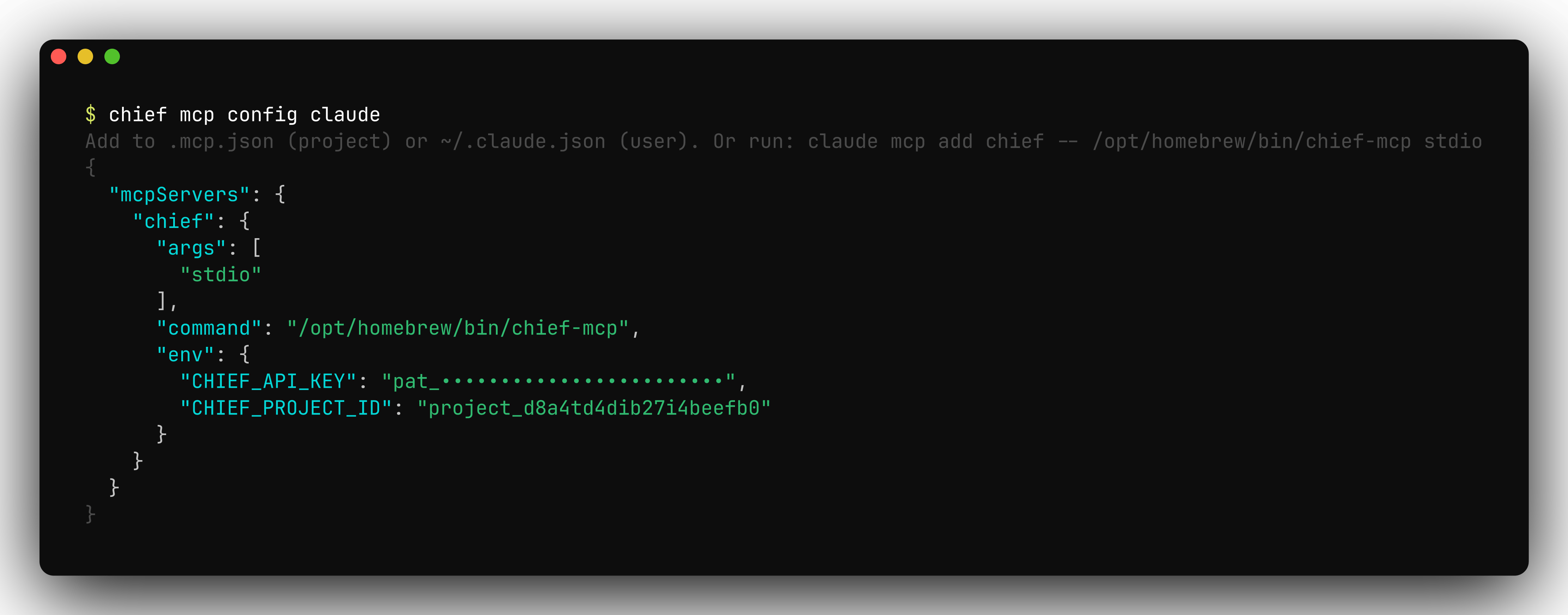
The fastest path is the [`chief` CLI](/tools/cli/overview), which writes a
ready-to-paste config prefilled with the installed binary path and your
credentials. Install the CLI too, then run:
```bash theme={null}
chief mcp config claude # Claude Code / Claude Desktop
chief mcp config cursor # Cursor
chief mcp config codex # Codex
```
Only installed `chief-mcp`? Use the hand-written snippets on
[MCP clients](/mcp/clients) instead — they need no extra tooling.
## Install
[Homebrew](https://brew.sh) is the recommended install on macOS:
```bash Homebrew theme={null}
brew install --cask Storytell-ai/tap/chief-mcp
```
```bash Go theme={null}
go install github.com/Storytell-ai/chief-mcp@latest
```
`go install` requires a [Go toolchain](https://go.dev/doc/install). Prebuilt
binaries for each platform are on the
[releases page](https://github.com/Storytell-ai/chief-mcp/releases).
## Credentials
A Chief Personal Access Token is required and sent as the API key. Most tools
are project-scoped and also need a project id. Pass credentials as flags or read
them from the environment:
| Flag | Environment variable | Required |
| ------------ | -------------------- | ------------------------------------------- |
| `--api-key` | `CHIEF_API_KEY` | yes |
| `--project` | `CHIEF_PROJECT_ID` | for project-scoped tools |
| `--base-url` | `CHIEF_BASE_URL` | no (defaults to `https://api.storytell.ai`) |
Create a token in the Chief app under [**Settings → API tokens**](https://chief.bot/settings/tokens) — see
[Introduction](/api-reference/introduction) for tokens and project ids.
## Security
* Treat your Personal Access Token like a password. Pass it through
`CHIEF_API_KEY` rather than committing it into a client config file.
* A token only reaches the projects it is scoped to. Set `CHIEF_PROJECT_ID` (or
the `X-Project-Id` header in HTTP mode) to bound the server to one project.
* `--insecure` disables TLS verification and is for local development only.
## Tools
The server exposes 44 tools across seven resources.
| Resource | Tools |
| ----------------- | --------------------------------------------------------------------------------------------------------------------------------------- |
| **Chats** | `create_chat`, `list_chats`, `get_chat`, `update_chat`, `delete_chat`, `send_message`, `list_messages`, `get_message`, `delete_message` |
| **Assets** | `upload_file`, `list_assets`, `get_asset`, `update_asset`, `delete_asset` |
| **Labels** | `create_label`, `list_labels`, `get_label`, `update_label`, `delete_label`, `attach_label`, `detach_label` |
| **Actions** | `create_action`, `list_actions`, `get_action`, `update_action`, `delete_action`, `enable_action`, `disable_action` |
| **Live sessions** | `list_sessions`, `get_session`, `update_session`, `delete_session` |
| **Skills** | `create_skill`, `list_skills`, `get_skill`, `update_skill`, `delete_skill`, `enable_skill`, `disable_skill` |
| **Memories** | `create_memory`, `list_memories`, `get_memory`, `update_memory`, `delete_memory` |
## What you can ask it
Once the server is connected you drive it in plain language — your agent picks
the right tools and chains them. The tools above map to requests like:
* *"What did we decide about pricing in the last few chats?"* — the agent calls
`list_chats` and `get_chat` to read recent conversations, then answers from
them.
* *"Upload every PDF in this folder and tag them `contracts`."* — `upload_file`
per file, then `create_label` and `attach_label`.
* *"Summarize the most recent live session."* — `list_sessions`, then
`get_session`.
* *"Create an action that emails me a summary of new assets every morning."* —
`create_action` with a schedule.
* *"Remember that I always want answers in metric units."* — `create_memory`.
Because the agent decides which tools to call, the exact sequence varies from run
to run — the same request can resolve through different tools and still be
correct. Give it the *goal* ("find and summarize…"), not a tool name, and let it
plan the calls. A server only sees the project it is scoped to, so to work
against a different project, point it there with `CHIEF_PROJECT_ID`.
## Transports
`chief-mcp` runs as your own process — locally over stdio (the common case) or
self-hosted over HTTP. There is no vendor-hosted Chief MCP endpoint; you run the
binary. Two transports are selected by subcommand:
* **stdio** (default) — for a local agent that launches the binary as a
subprocess.
* **http** — for remote or web-based agents. Each request authenticates from its
headers: the API key as a Bearer token in `Authorization` (or `X-API-Key`),
and the project in `X-Project-Id`.
```bash theme={null}
# Local agent (stdio).
chief-mcp stdio
# Remote agent (http) on :8080 at /mcp.
chief-mcp http --addr :8080 --path /mcp
```
| Option | Applies to | Description |
| ------------ | ---------- | ---------------------------------------------- |
| `--api-key` | stdio | Chief API key (env `CHIEF_API_KEY`) |
| `--project` | both | Default project id (env `CHIEF_PROJECT_ID`) |
| `--base-url` | both | API base URL (env `CHIEF_BASE_URL`) |
| `--insecure` | both | Skip TLS verification (local dev only) |
| `--debug` | both | Dump HTTP requests and responses |
| `--addr` | http | Address to listen on (default `:8080`) |
| `--path` | http | Path to mount the endpoint on (default `/mcp`) |
In HTTP mode the server authenticates each request from its headers, so
`--api-key` applies to stdio only. `--project` sets the default project for
requests that omit `X-Project-Id`.
## Configure a client
The fastest path is the [`chief` CLI](/tools/cli/overview), which writes a
ready-to-paste config prefilled with the installed binary path and your
credentials. Install the CLI too, then run:
```bash theme={null}
chief mcp config claude # Claude Code / Claude Desktop
chief mcp config cursor # Cursor
chief mcp config codex # Codex
```
Only installed `chief-mcp`? Use the hand-written snippets on
[MCP clients](/mcp/clients) instead — they need no extra tooling.
 For hand-written config and the full per-client setup, see
[MCP clients](/mcp/clients).
## Troubleshooting
* **Authentication failed** — confirm `CHIEF_API_KEY` is set in the server's
environment (or sent as a header in HTTP mode) and that the token is valid.
`chief doctor` checks credentials and connectivity.
* **A tool returns "not found"** — confirm the id exists in the project the
server is scoped to (`CHIEF_PROJECT_ID`). A wrong or missing project id is the
usual cause.
* **The client doesn't list the server or its tools** — restart the client
session. MCP servers are launched once and don't hot-reload after a config
change.
* **Inspect the traffic** — add `--debug` to dump every HTTP request and response
the server makes.
For hand-written config and the full per-client setup, see
[MCP clients](/mcp/clients).
## Troubleshooting
* **Authentication failed** — confirm `CHIEF_API_KEY` is set in the server's
environment (or sent as a header in HTTP mode) and that the token is valid.
`chief doctor` checks credentials and connectivity.
* **A tool returns "not found"** — confirm the id exists in the project the
server is scoped to (`CHIEF_PROJECT_ID`). A wrong or missing project id is the
usual cause.
* **The client doesn't list the server or its tools** — restart the client
session. MCP servers are launched once and don't hot-reload after a config
change.
* **Inspect the traffic** — add `--debug` to dump every HTTP request and response
the server makes.