> ## Documentation Index
> Fetch the complete documentation index at: https://dev.chief.bot/llms.txt
> Use this file to discover all available pages before exploring further.
# What you can build
> Concrete outcomes you can ship on Chief — and why each is worth it.
The reference tells you *what* every endpoint does. This page is the *why*: five real things
you can build on Chief, what each one gets you, and the shortest path to it. Each outcome is a
starting point — pick the one closest to your goal and follow the link into the details.
Every example uses the ACME demo project so the snippets line up with the rest of the docs.
## Add "ask your knowledge base" to your app
**Ship a Q\&A feature without building retrieval yourself.** Point a chat at the assets in your
project and Chief answers from them — no embeddings, no vector store, no pipeline to run. Start
a chat over REST, poll for the answer, and return it to your user.
```bash theme={null}
# Ask a scoped question; the response comes back asynchronously.
curl -sS -X POST "$CHIEF_BASE_URL/v1/chats" \
-H "Content-Type: application/json" \
-H "X-API-Key: $CHIEF_API_KEY" \
-H "X-Project-Id: $CHIEF_PROJECT_ID" \
-d '{
"prompt": "What risks does the ACME product roadmap highlight?",
"scope": { "asset_ids": ["asset_d8aad64dib2c7m3ae7j1"] }
}'
```
The call returns `chat_id` and `message_id` immediately; poll
`GET /v1/chats/{chat_id}/messages/{message_id}` until the `response` field appears. See the
[Chats guide](/guides/chats) for the full poll loop, or the [Quickstart](/quickstart) for an
end-to-end walkthrough.
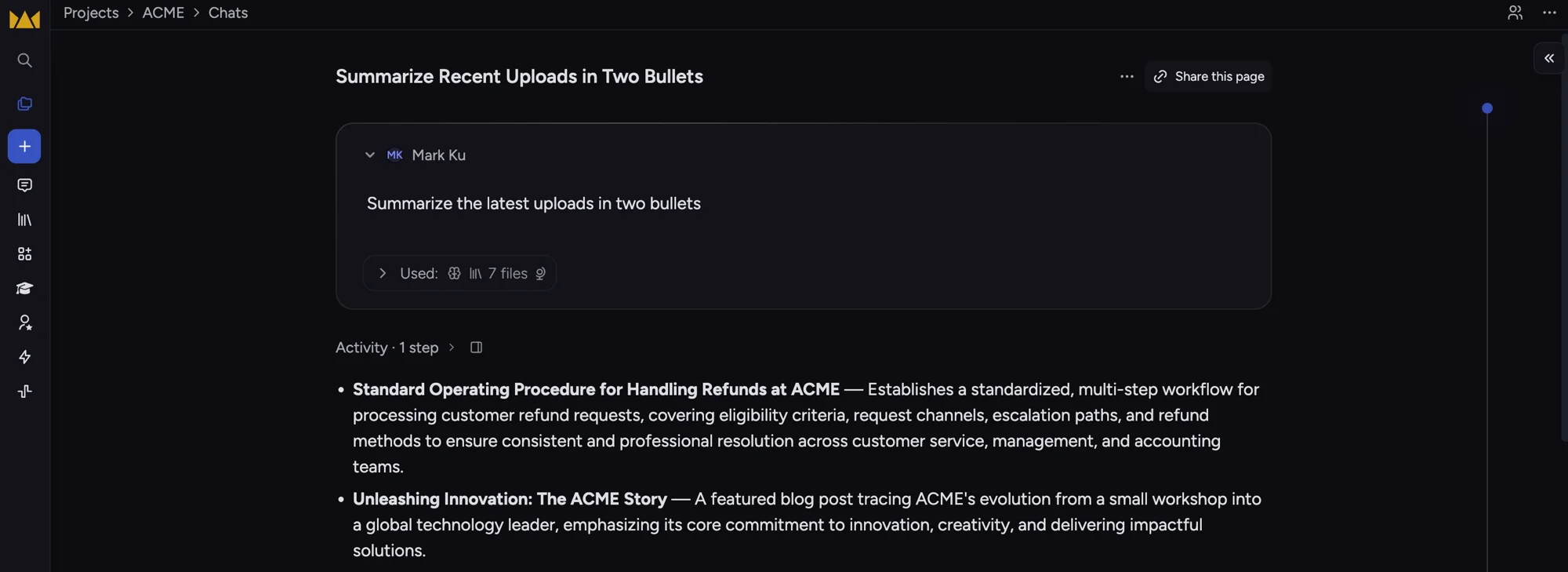 ## Email your team a daily digest
**Standing reports, no cron server.** An [action](/guides/actions) runs a prompt on a schedule
and emails the result. Schedule one every morning to summarize what landed in the project
overnight — Chief runs it and sends the email; you maintain nothing.
```bash theme={null}
# Every day at 07:00 in New York, summarize new assets and email the team.
chief actions create "Daily digest" \
--prompt "Summarize assets added to the project in 5 bullet points" \
--hour 7 --timezone America/New_York \
--email team@example.com --email-subject "ACME daily digest"
```
## Email your team a daily digest
**Standing reports, no cron server.** An [action](/guides/actions) runs a prompt on a schedule
and emails the result. Schedule one every morning to summarize what landed in the project
overnight — Chief runs it and sends the email; you maintain nothing.
```bash theme={null}
# Every day at 07:00 in New York, summarize new assets and email the team.
chief actions create "Daily digest" \
--prompt "Summarize assets added to the project in 5 bullet points" \
--hour 7 --timezone America/New_York \
--email team@example.com --email-subject "ACME daily digest"
```
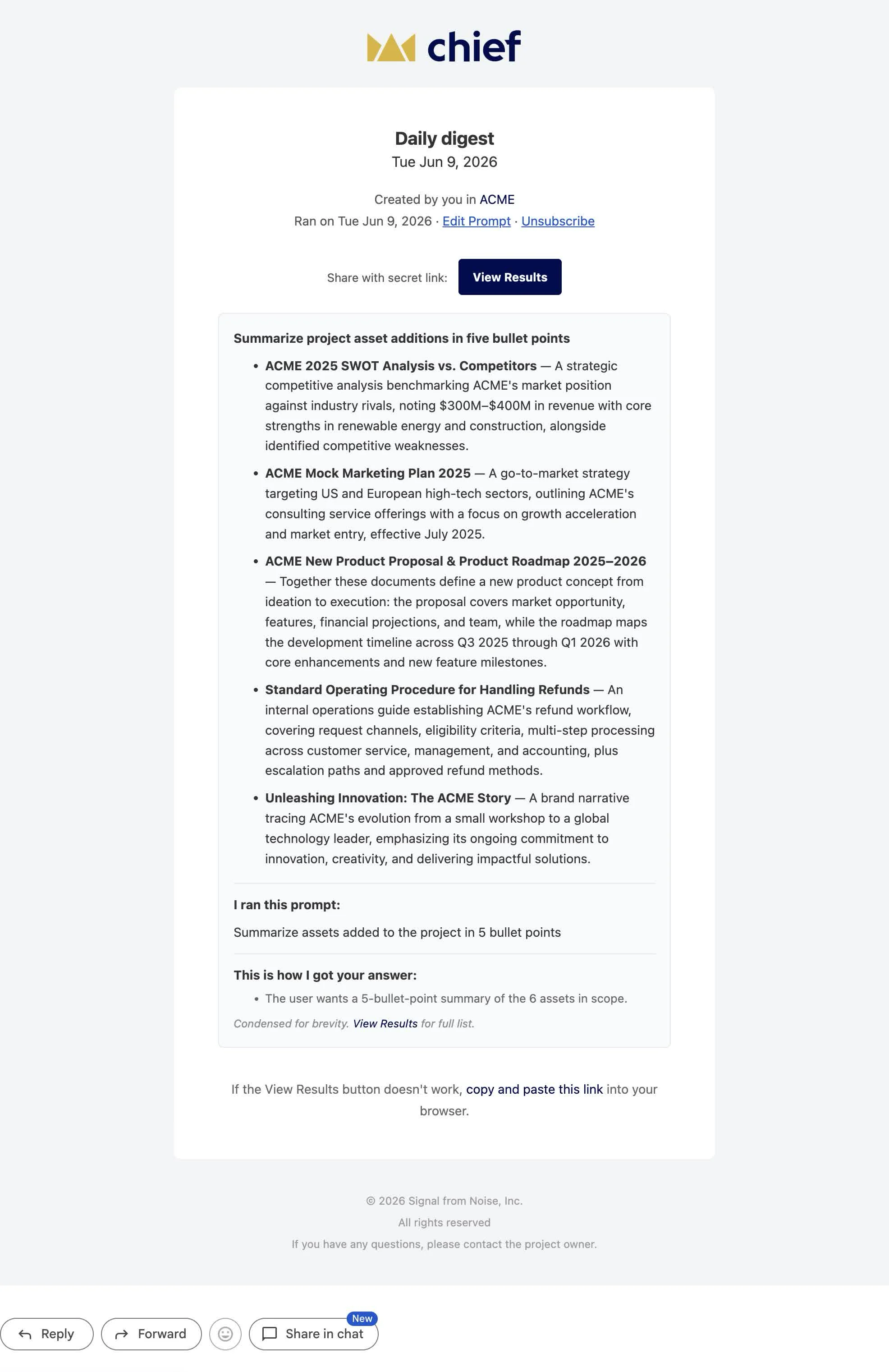 The same action over REST uses a `schedule` plus an `email` outcome — see the
[Actions guide](/guides/actions).
## Keep a folder of docs in sync
**Your repo's docs, always searchable in Chief.** Add one step to CI that uploads your docs
directory; content-identical files are skipped server-side, so re-runs are cheap. Everything
stays current and ready to query.
```bash theme={null}
# In CI, after checkout — upload the docs tree into the project.
chief assets upload ./docs --recursive
```
The same action over REST uses a `schedule` plus an `email` outcome — see the
[Actions guide](/guides/actions).
## Keep a folder of docs in sync
**Your repo's docs, always searchable in Chief.** Add one step to CI that uploads your docs
directory; content-identical files are skipped server-side, so re-runs are cheap. Everything
stays current and ready to query.
```bash theme={null}
# In CI, after checkout — upload the docs tree into the project.
chief assets upload ./docs --recursive
```
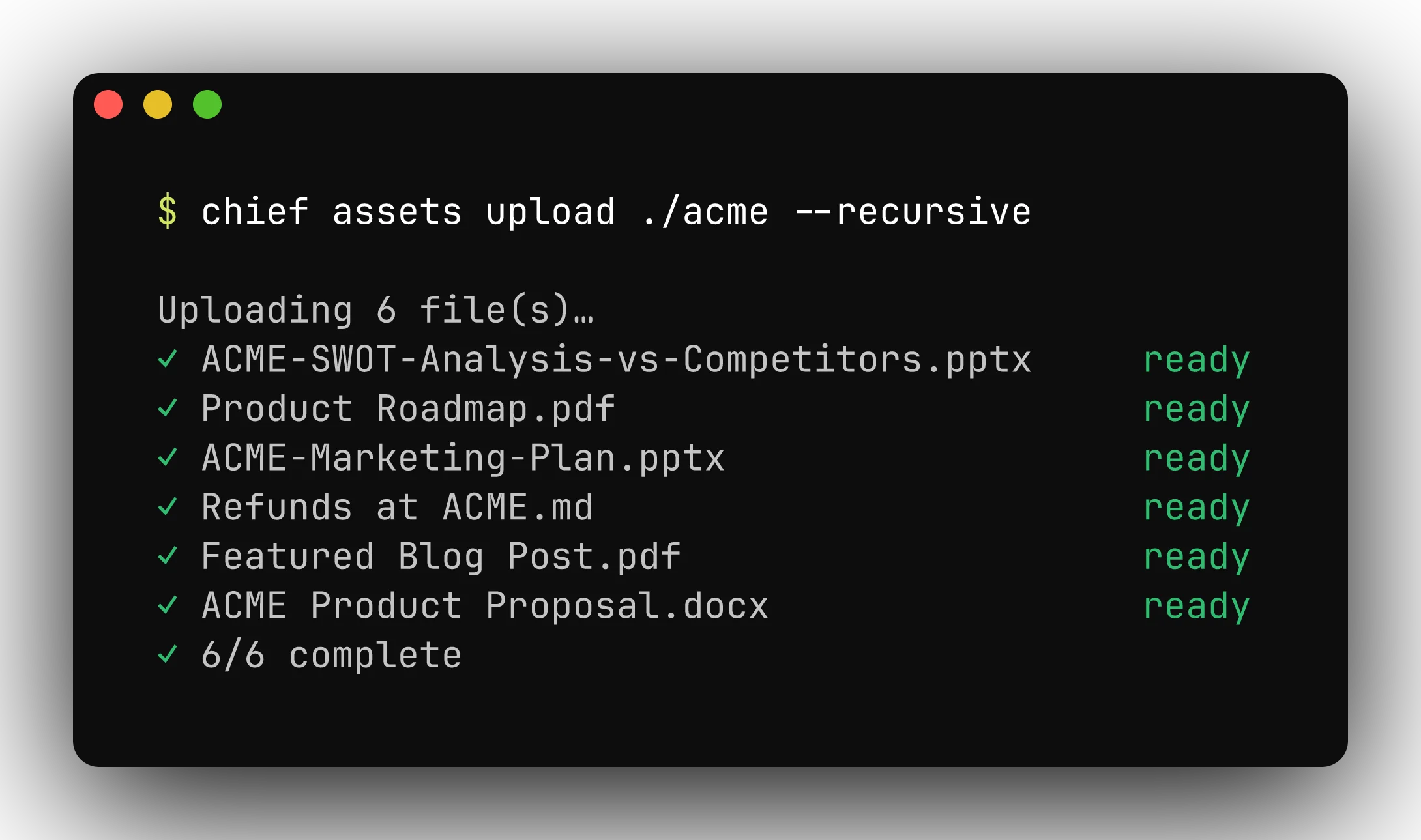 Uploads run in parallel and wait for ingest by default. See the [CLI command
reference](/tools/cli/commands#assets) for flags, or the [Assets guide](/guides/assets) for the
underlying REST upload flow.
## Give your coding agent your project's context
**Claude Code answers from your project, not just your code.** Connect your agent to Chief over
[MCP](/mcp/overview) and it can read everything your team has uploaded — ask it to summarize a
document, pull themes across the project, or draft from your team's own material, right in your
editor.
```bash theme={null}
# Connect Claude Code to your project over MCP.
claude mcp add chief \
-e CHIEF_API_KEY= \
-e CHIEF_PROJECT_ID= \
-- chief-mcp stdio
```
Uploads run in parallel and wait for ingest by default. See the [CLI command
reference](/tools/cli/commands#assets) for flags, or the [Assets guide](/guides/assets) for the
underlying REST upload flow.
## Give your coding agent your project's context
**Claude Code answers from your project, not just your code.** Connect your agent to Chief over
[MCP](/mcp/overview) and it can read everything your team has uploaded — ask it to summarize a
document, pull themes across the project, or draft from your team's own material, right in your
editor.
```bash theme={null}
# Connect Claude Code to your project over MCP.
claude mcp add chief \
-e CHIEF_API_KEY= \
-e CHIEF_PROJECT_ID= \
-- chief-mcp stdio
```
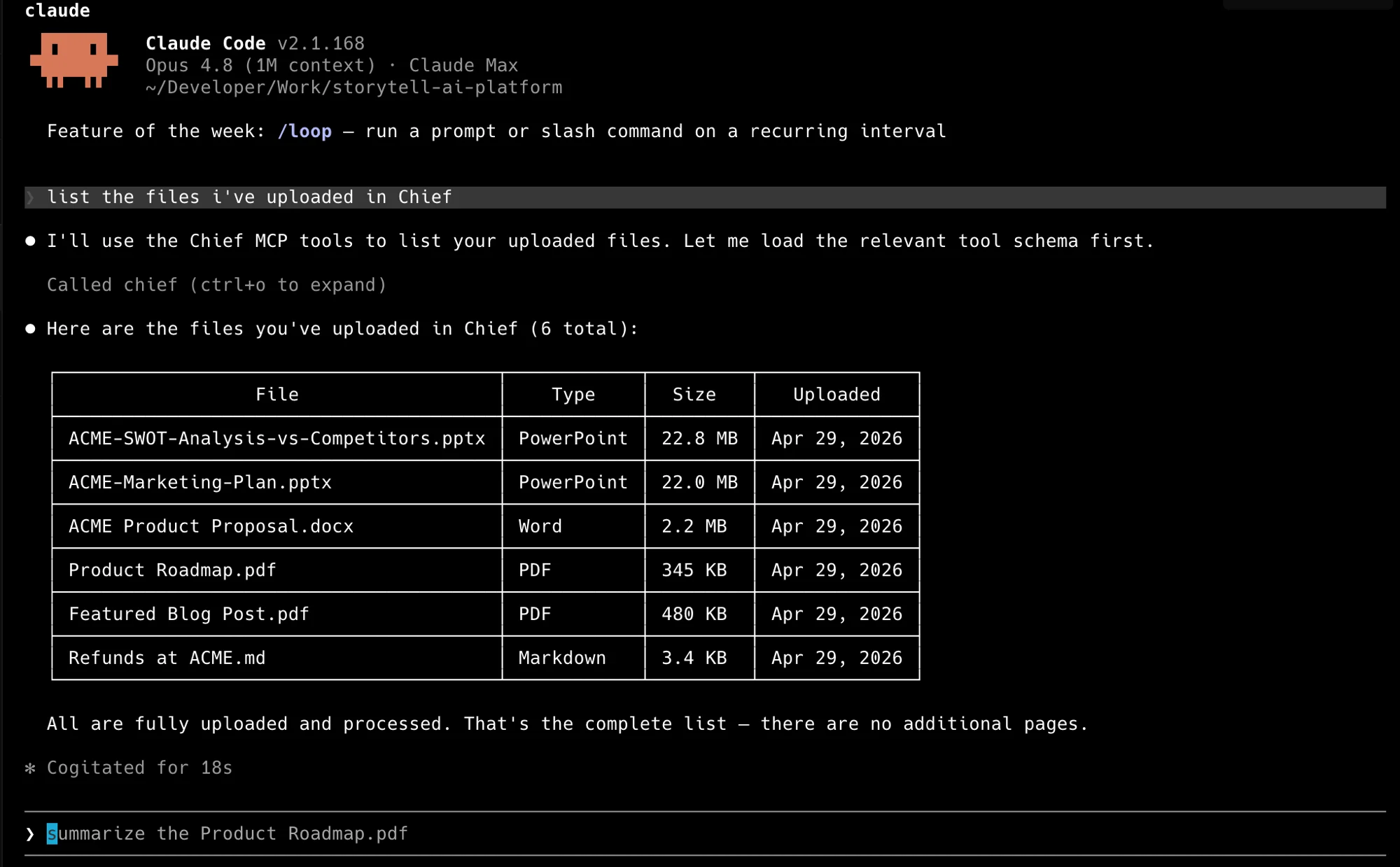 Then just ask, in plain language: *"Using Chief, what are the main themes across everything in
my project?"* The agent picks the tools and answers. See the [MCP server](/mcp/overview) page to
get connected.
## Tag and route new uploads automatically
**Triage that happens the moment a file lands.** A trigger [action](/guides/actions) fires on
new assets instead of on a clock — use it to label and route incoming documents so your project
stays organized without anyone watching it.
```bash theme={null}
# Run whenever a new asset lands, scoped to the inbox label.
chief actions create "Triage incoming" \
--prompt "Classify this document and attach the right label" \
--trigger new --label-id label_inbox
```
A trigger action takes `--trigger new` instead of a schedule. Pair it with
[labels](/guides/labels) to organize what it routes. See the [Actions guide](/guides/actions)
for triggers, scope, and the enable/disable lifecycle.
## Where to go next
Zero to a chat response with plain `curl`.
Schedule and trigger automations, with an email outcome.
Connect Claude Code, Cursor, or Codex to your project.
Every endpoint, with an interactive playground.
Then just ask, in plain language: *"Using Chief, what are the main themes across everything in
my project?"* The agent picks the tools and answers. See the [MCP server](/mcp/overview) page to
get connected.
## Tag and route new uploads automatically
**Triage that happens the moment a file lands.** A trigger [action](/guides/actions) fires on
new assets instead of on a clock — use it to label and route incoming documents so your project
stays organized without anyone watching it.
```bash theme={null}
# Run whenever a new asset lands, scoped to the inbox label.
chief actions create "Triage incoming" \
--prompt "Classify this document and attach the right label" \
--trigger new --label-id label_inbox
```
A trigger action takes `--trigger new` instead of a schedule. Pair it with
[labels](/guides/labels) to organize what it routes. See the [Actions guide](/guides/actions)
for triggers, scope, and the enable/disable lifecycle.
## Where to go next
Zero to a chat response with plain `curl`.
Schedule and trigger automations, with an email outcome.
Connect Claude Code, Cursor, or Codex to your project.
Every endpoint, with an interactive playground.